
Tag: Endpoint Management

  • BitLocker Encryption Not Starting on Surface Pro 9? Check WinRE Configuration

    BitLocker Encryption Not Starting on Surface Pro 9? Check WinRE Configuration

    Introduction

    When deploying a Microsoft Surface Pro 9, you may encounter a situation where BitLocker encryption does not start automatically, even though the device is correctly joined to the organization and all standard BitLocker requirements appear to be met.

    A common cause is that the Windows Recovery Environment (WinRE) is disabled or not properly configured. Without WinRE, Windows cannot proceed with automatic device encryption and BitLocker remains inactive.

    This article explains how to identify the issue and how to resolve it.

    Symptoms

    You may notice one or more of the following symptoms:

    • BitLocker encryption does not start automatically.
    • The device remains unencrypted several minutes after deployment.
    • No recovery key is uploaded to Microsoft Entra ID.
    • The BitLocker status shows encryption as pending or inactive.

    How to Verify the Cause

    Open Event Viewer and navigate to:

    Applications and Services Logs
    
    └─ Microsoft
     └─ Windows
      └─ BitLocker-API
       └─ Management

    If WinRE is not configured correctly, you may find an event similar to the following:

    Failed to enable Silent Encryption.
    WinRE is not configured.
    
    Error:
    This PC cannot support device encryption because WinRE is not properly configured.

    Resolution

    Open an elevated Command Prompt (Run as Administrator) and execute:

    reagentc /enable

    If the command succeeds, you should receive a confirmation similar to:

    REAGENTC.EXE: Operation Successful

    Verify WinRE Status

    You can confirm that WinRE has been enabled by running:

    reagentc /info

    A correctly configured system should display:

    Windows RE status: Enabled

    What Happens Next?

    After enabling WinRE:

    1. Wait a few minutes.
    2. Windows should automatically retry the device encryption process.
    3. BitLocker encryption should begin without requiring any further action.

    You can verify the encryption status by running:

    manage-bde -status

    Conclusion

    If BitLocker encryption is not starting on a Surface Pro 9, the issue may not be related to TPM, Intune policies, or Microsoft Entra ID. In some cases, the root cause is simply that Windows Recovery Environment (WinRE) is disabled.
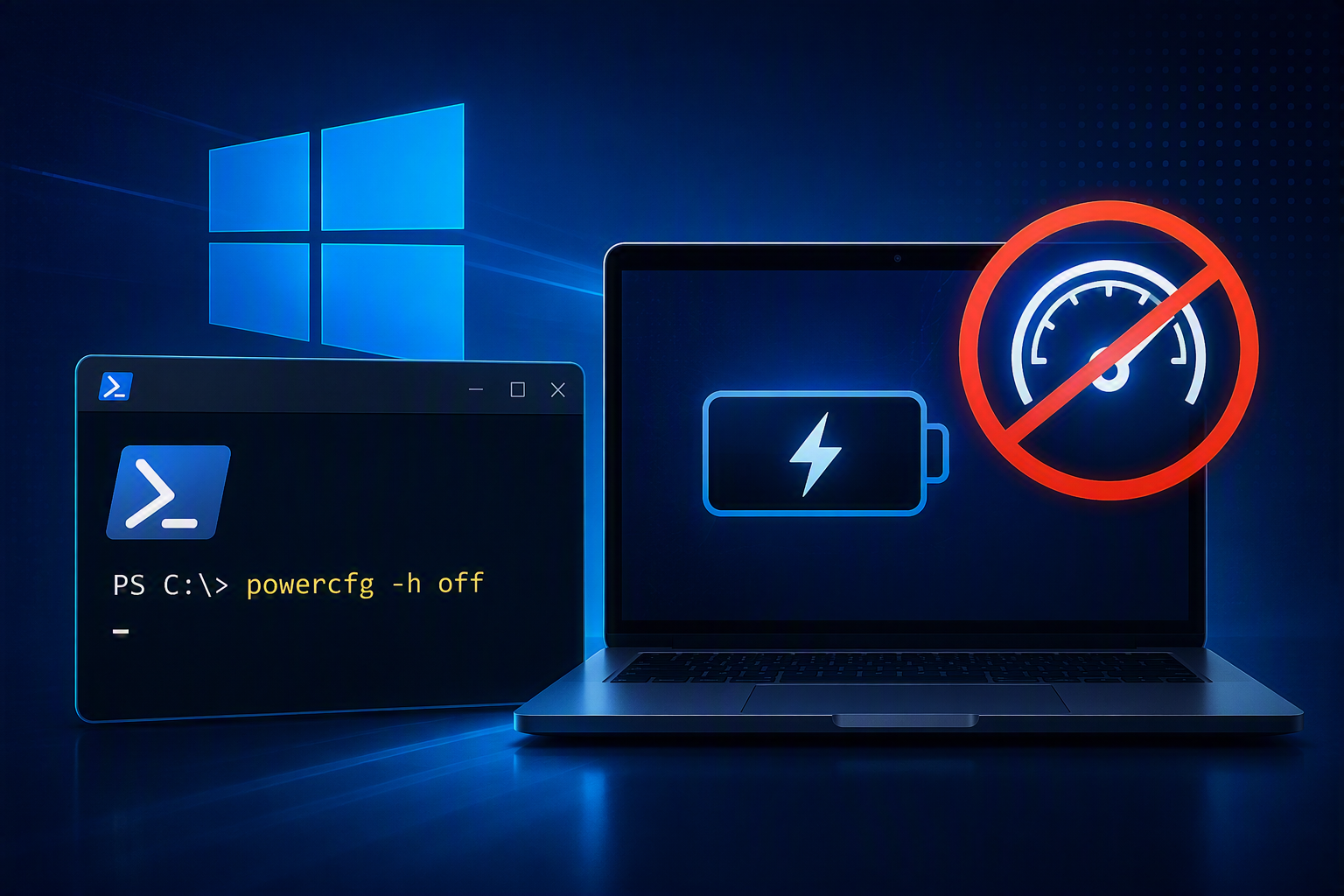
  • How to Disable Fast Startup in Windows Using PowerShell

    How to Disable Fast Startup in Windows Using PowerShell

    Fast Startup is a Windows feature designed to reduce boot times by partially hibernating the operating system when shutting down. While this can improve startup performance, it may also cause unexpected issues with updates, device initialization, remote management, and troubleshooting activities.

    For IT administrators and power users, disabling Fast Startup is often recommended to ensure a clean shutdown and startup cycle.

    What Is Fast Startup?

    Introduced in Windows 8 and available in Windows 10 and Windows 11, Fast Startup combines elements of a traditional shutdown and hibernation.

    Instead of fully closing the Windows kernel during shutdown, the operating system stores the kernel session in the hibernation file (hiberfil.sys). During the next startup, Windows reloads this file instead of performing a complete boot process.

    Benefits

    • Faster boot times
    • Reduced startup delays on traditional hard drives
    • Improved user experience for home users

    Potential Issues

    In enterprise environments, Fast Startup can sometimes create problems such as:

    • Windows Updates not applying correctly
    • Wake-on-LAN inconsistencies
    • BitLocker recovery prompts
    • Dual-boot operating system issues
    • Network adapter initialization problems
    • Inaccurate uptime reporting
    • Troubleshooting complications when a full restart is required

    Disable Fast Startup Using PowerShell

    The Fast Startup setting is controlled through the following registry value:

    HKLM\SYSTEM\CurrentControlSet\Control\Session Manager\Power\HiberbootEnabled

    Value meanings:

    ValueDescription
    1Fast Startup Enabled
    0Fast Startup Disabled

    The following PowerShell script disables Fast Startup by setting the value to 0.

    $Path = "HKLM:\SYSTEM\CurrentControlSet\Control\Session Manager\Power"
    2
    $Name = "HiberbootEnabled"
    3
    $value = "0"
    4
     
    5
    If (!(Test-Path $Path))
    6
    {
    7
    New-Item -Path $Path -Force | Out-Null
    8
    New-ItemProperty -Path $Path -Name $Name -Value $value -PropertyType DWORD -Force | Out-Null
    9
    }
    10
    Else
    11
    {
    12
    New-ItemProperty -Path $Path -Name $Name -Value $value -PropertyType DWORD -Force | Out-Null
    13
    }

    This can be deployed through:

    • Microsoft Intune
    • Configuration Manager (SCCM/MECM)
    • Group Policy startup scripts
    • Remote PowerShell sessions

    Deploying Through Intune

    If you’re managing Windows devices with Microsoft Intune, you can deploy the PowerShell script as:

    1. Devices
    2. Scripts and Remediations
    3. Platform Scripts
    4. Upload the script
    5. Assign it to the required device group

    This provides a simple and scalable way to disable Fast Startup across an entire organization.

    Final Thoughts

    Fast Startup can reduce boot times for end users, but in managed environments it may introduce unnecessary complexity when dealing with updates, encryption, remote administration, and troubleshooting.

    For organizations that prioritize stability and predictable system behavior, disabling Fast Startup is often a recommended best practice. PowerShell provides a quick and reliable method to apply the configuration locally or at scale through enterprise management tools such as Intune or Configuration Manager.