Introduction
Over the last couple of weeks, I noticed some very strange audio behaviour on my HP EliteBook (2025 model) running Windows 11.
The sound would randomly switch between stereo and mono, audio quality would fluctuate unexpectedly, and occasional cut-outs would occur during video calls, media playback, and system sounds.
Initially, I suspected a faulty driver update, Windows patch, or even a hardware issue. However, the system was already running the latest Realtek audio driver available from HP.
After several troubleshooting attempts, I found a surprisingly simple solution: disabling Windows Audio Enhancements.
Symptoms
The issues I observed included:
- Audio unexpectedly sounding mono instead of stereo.
- Intermittent sound glitches and dropouts.
- Inconsistent audio quality between applications.
- Problems occurring despite having the latest audio drivers installed.
- The issue affecting both built-in speakers and external audio devices.
Interestingly, a reboot would sometimes temporarily improve the situation, but the problem would eventually return.
Environment
- Device: HP EliteBook (2025)
- Operating System: Windows 11
- Audio Chipset: Realtek Audio
- Driver Version: 6.0.10023.1
- Driver Date: 28/07/2026
The Fix
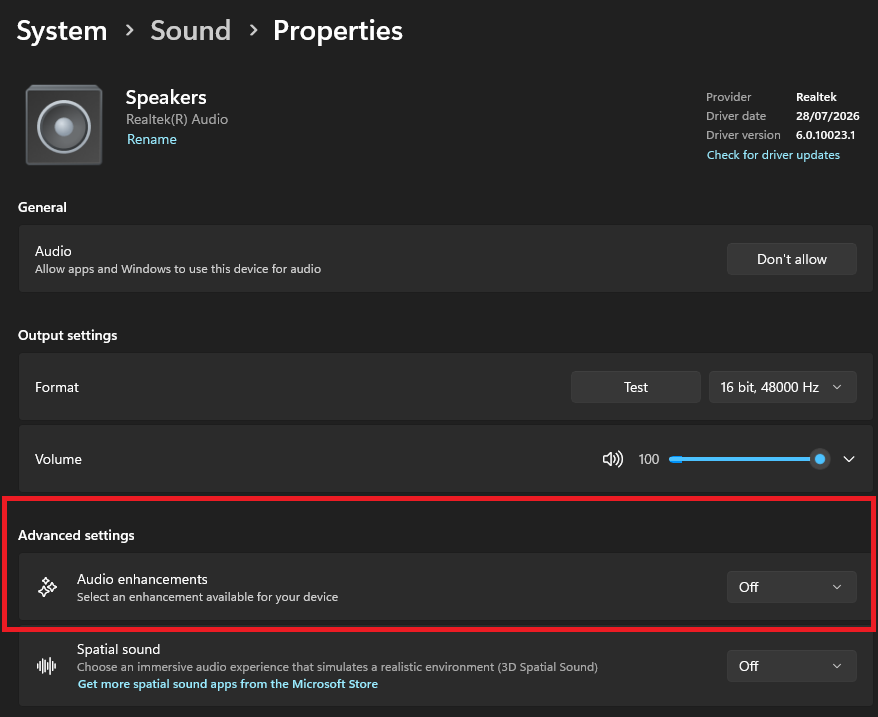
I navigated to:
Settings → System → Sound → Speakers → Audio Enhancements
and changed Audio Enhancements from its default setting to Off.
After applying the change, the audio problems disappeared immediately.
The system returned to normal stereo playback and all intermittent glitches stopped occurring.
Why This Can Happen
Audio Enhancements are software-based processing features designed to improve the listening experience. Depending on the hardware vendor, these enhancements may include:
- Virtual surround sound
- Dynamic equalization
- Loudness normalization
- Noise reduction
- Environmental effects
While these technologies can improve audio in some scenarios, they add an additional processing layer between applications and the audio hardware.
Following Windows updates, driver updates, or firmware changes, these enhancements can occasionally become unstable, leading to:
- Audio distortion
- Channel mapping issues
- Mono/stereo inconsistencies
- Increased latency
- Random audio dropouts
In my case, disabling the enhancement layer restored stable communication between Windows and the Realtek driver.
Leave a Reply