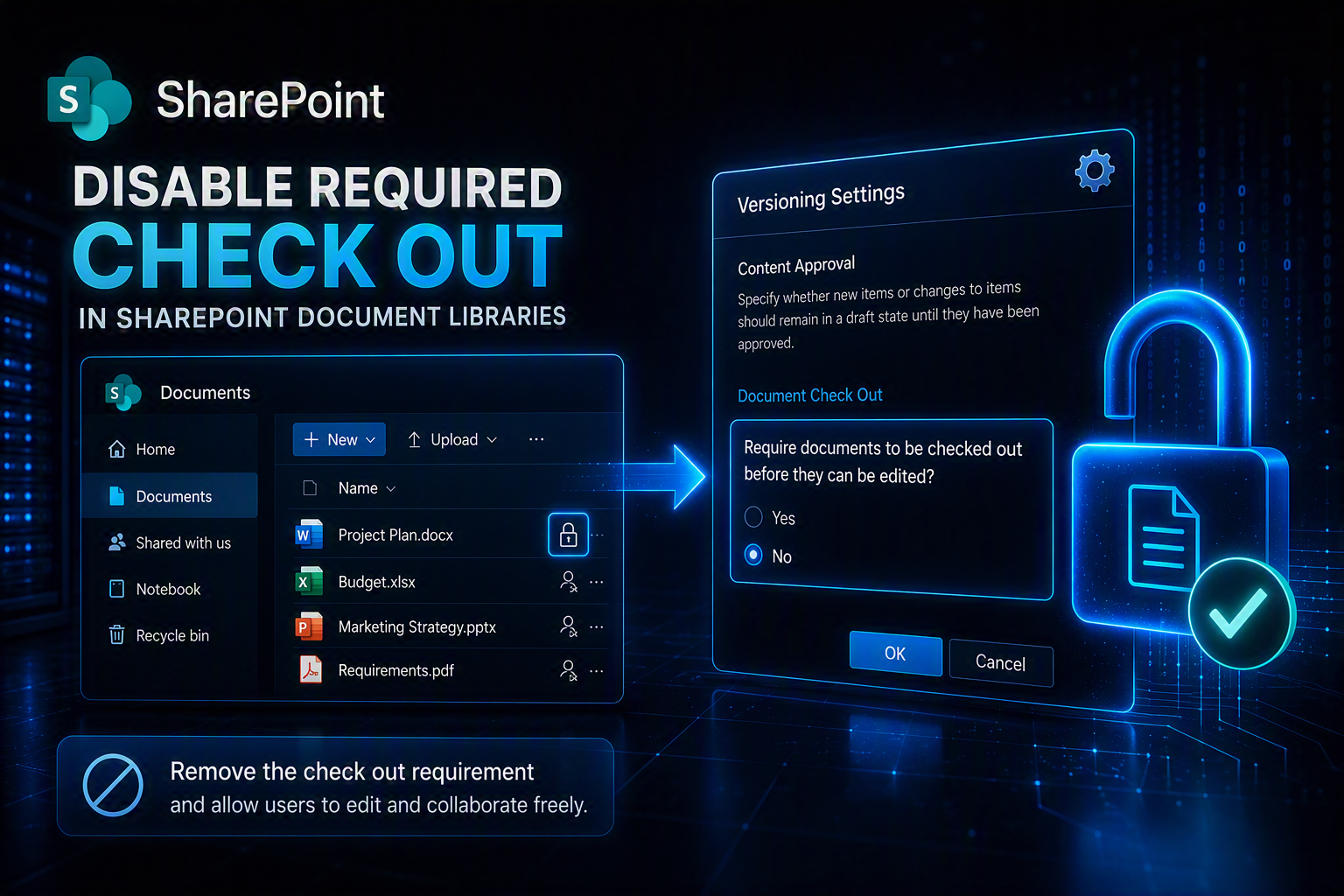
When working with SharePoint document libraries, you may sometimes find that users are forced to check out documents before they can edit them. This setting can be useful in some controlled environments, but in many modern collaboration scenarios it can create unnecessary friction, especially when several users need to work on the same document.
In this article, I’ll show you how to disable the required check out setting in a SharePoint document library.
What is required check out in SharePoint?
Required check out is a SharePoint library setting that forces users to check out a document before they can edit it.
When this option is enabled, a document becomes locked for editing by one user at a time. Other users may be prevented from editing the file until it is checked back in.
When should you disable required check out?
You may want to disable required check out when:
- Users need to collaborate on Word, Excel or PowerPoint files at the same time
- Documents are often left checked out by mistake
- Users report that they cannot edit files
- You want a simpler document editing experience
- Co-authoring is preferred over file locking
How to disable required check out in SharePoint
Follow these steps in the SharePoint document library where you want to change the setting.
Step 1: Open the SharePoint document library
Go to the SharePoint site and open the document library where the check out requirement is enabled.
Step 2: Open the library settings
Click the gear icon in the top-right corner.
Then select Library settings.
If you do not immediately see all the available settings, choose More library settings or View all library settings, depending on the SharePoint interface you are using.
Step 3: Open versioning settings
Inside the library settings page, look for the option called:
Versioning settings
Open that page.
This is where SharePoint allows you to configure version history, content approval and check out behaviour for that specific document library.
Step 4: Find the required check out option
Scroll down until you find the section related to check out.
Look for this option:
Require documents to be checked out before they can be edited?
Step 5: Select No
To disable the requirement, select:
No
Then click OK to save the changes.
Important note
Only users with the appropriate permissions, such as Full Control or Design, can configure this setting in a SharePoint document library.
Leave a Reply