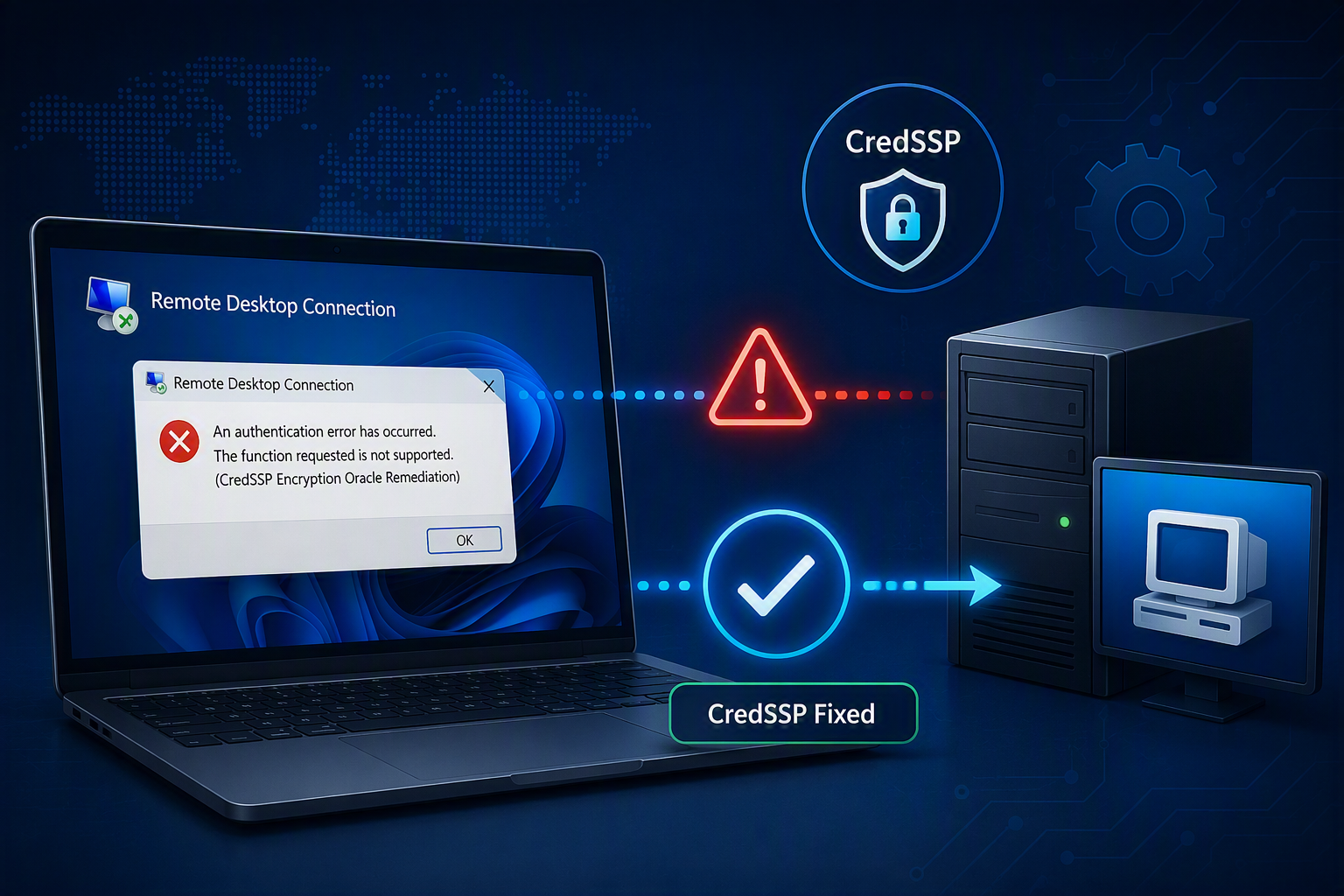
If you’ve ever tried connecting to an older Windows server using Remote Desktop (RDP) and received a CredSSP encryption oracle remediation error, you’re not alone.
This issue became common after Microsoft released security updates to address vulnerabilities in the Credential Security Support Provider (CredSSP) protocol. While these updates improved security, they also introduced compatibility issues between fully patched clients and older, unpatched servers.
Typical Error Message
When attempting to connect through Remote Desktop, you may see an error similar to:
An authentication error has occurred.
The function requested is not supported.
This could be due to CredSSP encryption oracle remediation.
Why This Happens
Microsoft tightened the validation process used during RDP authentication to mitigate a security vulnerability. As a result:
- Newer Windows clients may refuse connections to older servers.
- Legacy servers that have not received the required security updates can trigger the CredSSP error.
- The issue is commonly encountered in environments with end-of-life operating systems or servers that are no longer regularly patched.
Temporary Workaround
⚠️ Security Warning: The following workaround reduces the security level of the local computer and should only be used when connecting to trusted legacy systems. Where possible, update the target server instead.
Open an elevated Command Prompt (Run as Administrator) and execute:
REG ADD "HKLM\SOFTWARE\Microsoft\Windows\CurrentVersion\Policies\System\CredSSP\Parameters" /v AllowEncryptionOracle /t REG_DWORD /d 2 /f
This configures the client to allow connections to servers that do not support the latest CredSSP security requirements.
Apply the Change
After executing the registry command:
- Close any active Remote Desktop sessions.
- Restart the Remote Desktop client.
- Attempt the RDP connection again.
In some cases, a system reboot may be required before the change takes effect.
Reverting the Change
Once the server has been patched or upgraded, it is recommended to remove this workaround.
To delete the registry value:
REG DELETE "HKLM\SOFTWARE\Microsoft\Windows\CurrentVersion\Policies\System\CredSSP\Parameters" /v AllowEncryptionOracle /f
Alternatively, set the policy back to its secure default configuration through Group Policy or system updates.
Long-Term Recommendation
This registry modification should be considered a temporary compatibility fix rather than a permanent solution.
The best practice is to:
- Patch the target server with the latest security updates.
- Migrate unsupported operating systems.
- Maintain consistent patching levels across servers and workstations.
- Avoid reducing client-side security settings whenever possible.
Conclusion
The CredSSP error is typically caused by a security mismatch between modern Windows clients and older servers. While setting AllowEncryptionOracle to 2 can restore connectivity, administrators should view this as a short-term workaround and prioritize updating legacy systems to maintain a secure environment.
Leave a Reply